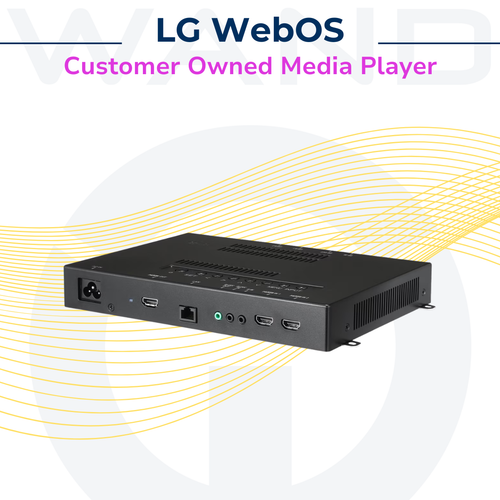


Most leading food service and retail brands are stepping away from expensive, high-maintenance Windows machines for their digital signage. The industry standard is quickly shifting toward lightweight, cloud-managed endpoints.
Instead of ripping and replacing your current media players, ChromeOS Flex is the perfect way to turn your existing hardware into hyper-reliable, instant-on digital signage players. It completely eliminates the risk of a rogue Windows update pop-up interrupting your screens during a lunch rush.
The Minimum Requirements If your current micro-PCs, NUCs, or custom media boxes were built in the last decade, they likely hit these baseline specs:
-
Processor: 64-bit Intel or AMD processor (perfect for the Celeron or Core chips in most commercial media players).
-
Memory: 4 GB of RAM (Flex is incredibly lean, making 4GB plenty for smooth video playback).
-
Storage: 16 GB of internal hard drive space.
-
Access: Full administrator access to the device's BIOS/UEFI settings.
The Installation and Deployment Path The standard, risk-free way to roll this out across a fleet is to run a live test first.
-
Create the USB: Grab a blank USB drive and use the free Chromebook Recovery Utility extension to build a bootable drive in minutes.
-
The Default Test Run: Plug the USB into one of your existing media players and boot from it. Choose "Try it first" to run the OS live. You can test your network connectivity and display output without touching the existing operating system.
-
Install and Enroll: Once approved, select "Install ChromeOS Flex." This wipes the old OS and installs Flex in under 20 minutes.
-
Lock it Down: Hit Ctrl + Alt + E on the first boot screen to instantly tie the player to your Google Admin console using a Kiosk & Signage license.
-
Set and Forget: Assign your digital signage app to auto-launch. The device is now locked down and ready to mount behind the screen.
Let's grab one of your older media boxes and run a quick test drive.